
Dark mode
In VR
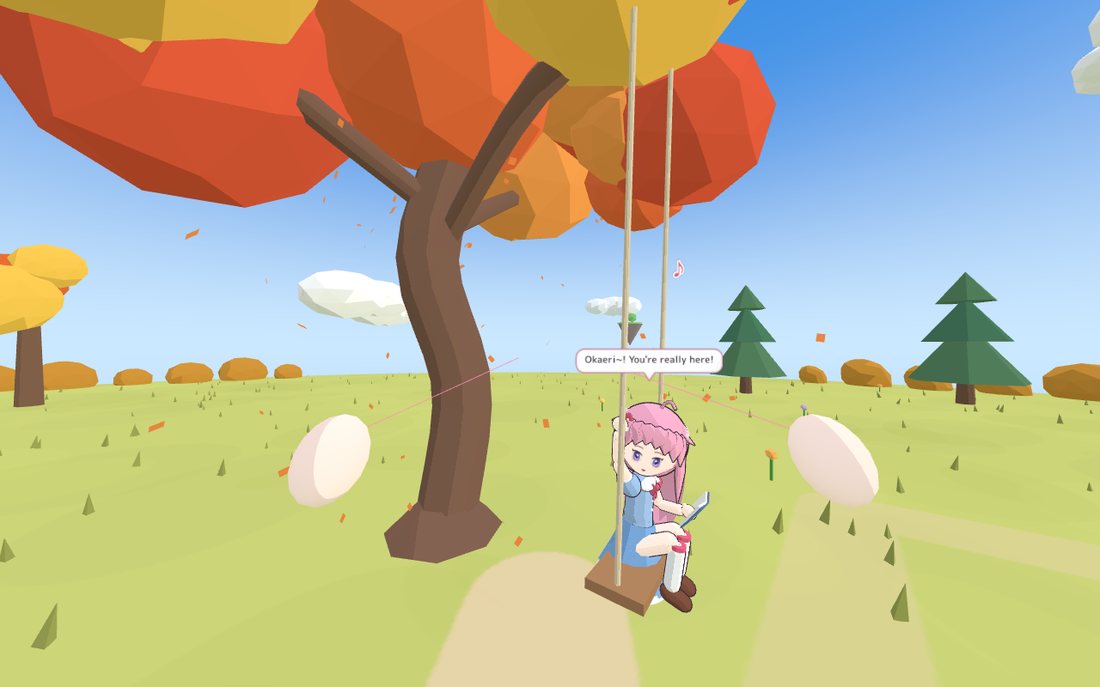
Step onto her island with a PC VR headset. She runs up and hugs you when you arrive, walks with you hand in hand, and you talk to her face to face.
What you need
- A PC VR setup: a Meta Quest with Quest Link, Air Link or Steam Link, or a SteamVR headset (Valve Index, HTC Vive, Pico, and others).
- SteamVR or the Meta Quest Link app, running, and set as your OpenXR runtime (see below).
- Google Chrome or Microsoft Edge on your PC. The visit runs in that browser, because the app itself can't talk to VR headsets. (Firefox doesn't support WebXR.)
Start a visit
- Start SteamVR (or Quest Link) and put your headset on.
- In Okaeri, press 🥽 Visit in VR (or ⚙️ Settings → Desktop → VR → 🥽 Visit her in VR). Chrome or Edge opens on your PC.
- Press the big 🥽 Enter VR button at the top of that page. Use the mouse, or the controller's laser pointer in SteamVR's desktop view.
- You're on her island.
When you're done, close the browser tab (or take the headset off and press Bring her back in Okaeri). She comes back to the app with everything that happened, including her memories of your visit.
Only seeing a flat window in your headset?
If you see Okaeri or the browser as a flat screen floating in front of you, you're looking at your PC's desktop inside SteamVR. Point at the browser window and press 🥽 Enter VR: then you're really inside her world.
Set your OpenXR runtime
Browsers find headsets through OpenXR. If the page says it doesn't see your headset yet:
- SteamVR: SteamVR → Settings → OpenXR → Set SteamVR as OpenXR Runtime.
- Meta Quest Link: Meta Quest Link app on your PC → Settings → General → OpenXR Runtime → Set Meta Quest Link as active.
Start SteamVR or Link first, then go back to the browser page: the Enter VR button appears by itself (or reload the page with F5).
Controls
| Do this | To |
|---|---|
| Hold A or X | Talk to her. A 🎤 badge in front of you shows when she's listening; let go when you're done. |
| Squeeze the grip next to her hand | Hold her hand and walk together. Her hand glows when yours is close enough. |
| Touch her head with your hand | Pat her head. |
| Left stick | Walk (in the direction you look). |
| Right stick left / right | Turn. |
| Right stick down / up | Crouch down, or stand back up. |
| B or Y | Open the menu. |
The menu has quick lines (👋 Hi!, How are you?, What are you doing?, How was your day?, You're cute, 💃 Let's dance!, Come here, Good night), 🎤 Talk, and Exit VR.
When she's close, her words appear as subtitles in front of you. When you walk away, she follows you.
The welcome hug
When you arrive, she runs up and hugs you: arms around you, her cheek against your chest, happy closed eyes, a few hearts, and a soft heartbeat in your controllers. Then she steps back and looks up at you. Walk away to end the hug early, or take her hand and it turns into holding hands. If she's asleep when you arrive, there's no hug: talk to her and she wakes up.
Hold her hand in VR
Reach toward her hand and squeeze the grip (or trigger). Her hand glows and your controller ticks when you're close enough; squeezing a bit early works too, she takes your hand when you get there. Then walk with the left stick or in your room, and she walks along. Let go of the grip to let go of her hand.
Troubleshooting
- No Enter VR button: set your OpenXR runtime (above), start SteamVR or Link first, use Chrome or Edge, then reload the page.
- She looks small when you stand: the built-in Hana is petite (about 1.3 m). Crouch with the right stick (down) to meet her eye to eye, or sit down. Imported models are usually taller.
- She doesn't hear you: the browser must be allowed to use your microphone. If the 🎤 badge says Microphone blocked, allow the microphone for that page in the browser (the icon in the address bar) and try again.
- Choppy picture: close other heavy apps, or lower the graphics quality in ⚙️ Settings (Advanced) → World → Graphics.
More in Troubleshooting.