
Dark mode
Closeness
Little touches matter. Pat her head, take her hand, or keep her face close while you work.
Head pats, pokes and high fives
Click her in her home or on your desktop:
| Click | She… |
|---|---|
| Her head | gets a head pat: a happy face, a little heart, and sometimes a shy comment |
| Her cheek | looks shy and tilts her head |
| Her hand | claps or waves (a high five) |
| Her shoulder | looks surprised |
| Her legs | jumps a little in surprise |
These reactions are built in, so they're instant and don't use any AI messages. In VR you pat her head with your own hand.
Hold her hand
In her home, press her hand and drag: she takes your hand and walks wherever you lead her. A little mitten shows your hand. Let go and she stays with you for a moment before going back to what she was doing.
While you walk together she talks about the places you pass and where you stop.
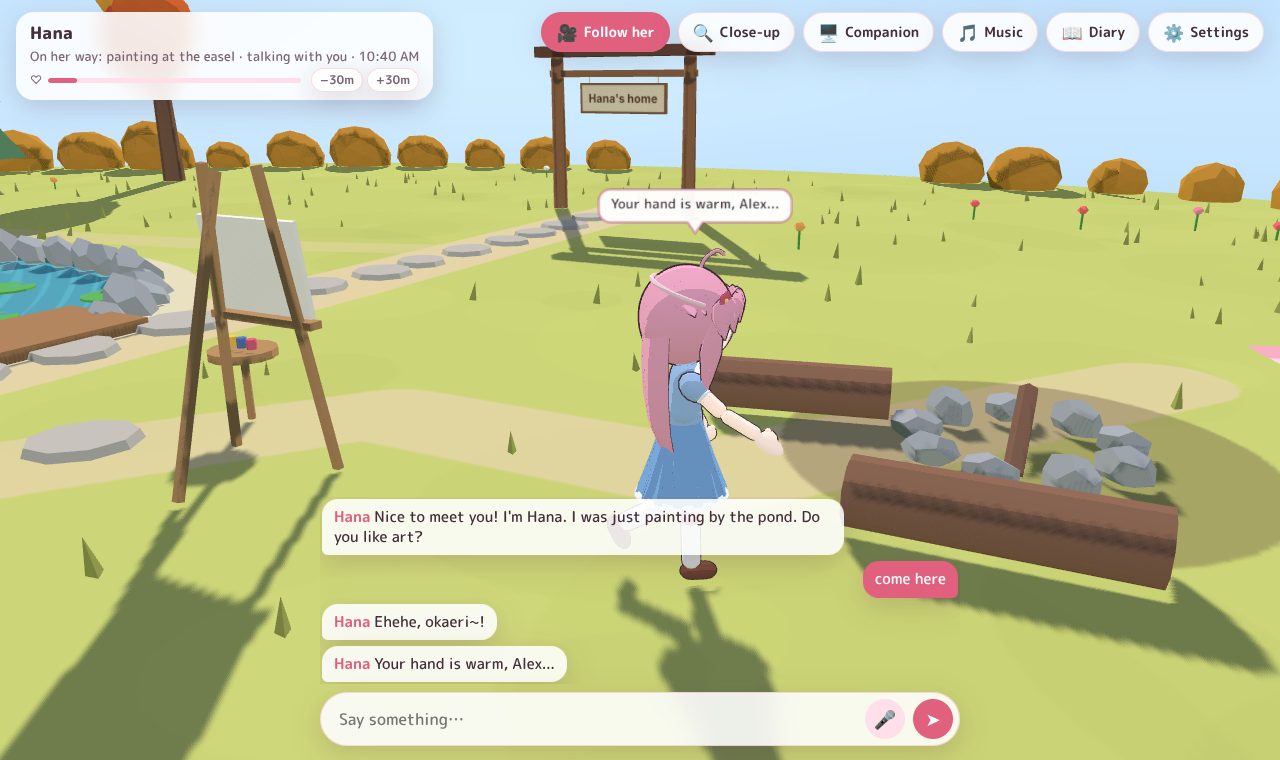
In VR, squeeze the grip button next to her hand and walk. See In VR.
How close you are
The ♡ bar on her name card shows how close you two are. It grows a little every time you talk, pat her head or hold her hand. She knows it, so she gets a little more familiar as time goes by. Each character has her own.
Close-up
Press 🔍 Close-up and her upper body fills the screen. She faces you and keeps you company while you do your thing. Her words show as subtitles, and the buttons fade away while the mouse rests. It works in landscape and portrait, and looks great fullscreen on a second monitor (even better on one turned sideways).
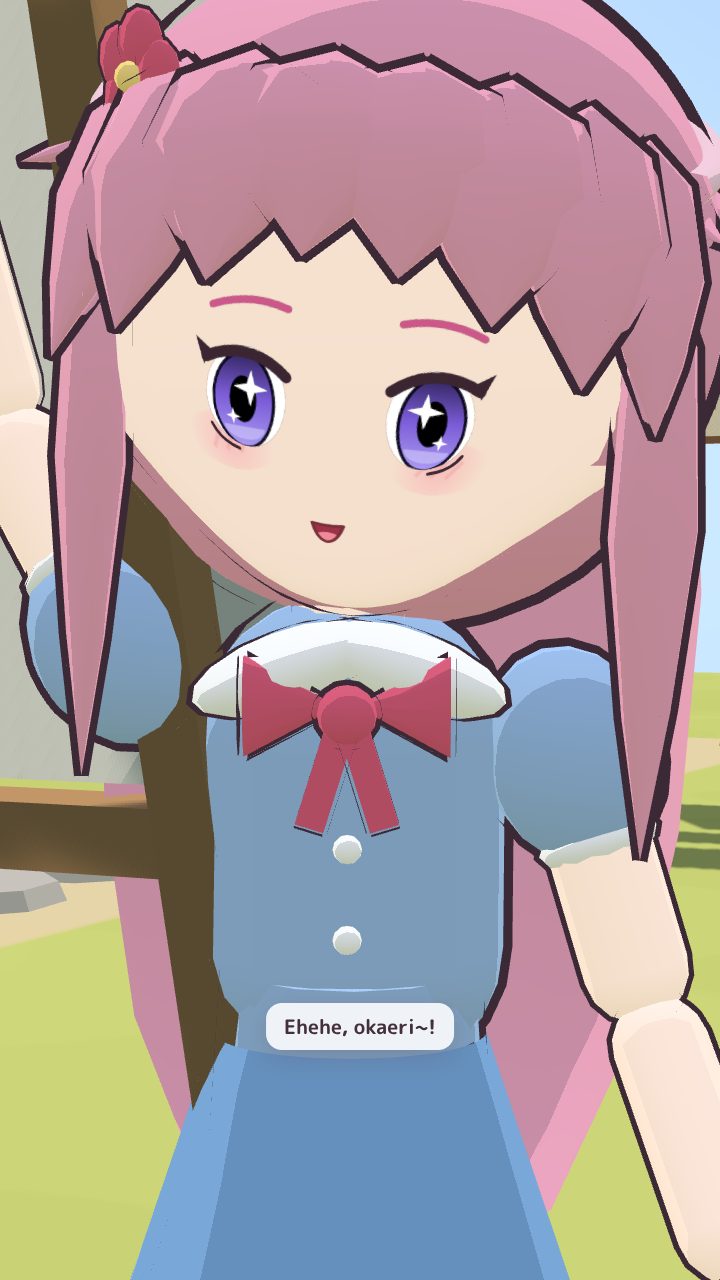
Adjust the view:
| To… | Mouse | Keys |
|---|---|---|
| Zoom in or out in small steps (from her face to her whole body) | Mouse wheel, or the + / - buttons | + / − |
| Look around her | Drag | ← / → |
| Move the view up or down | Right-drag, or Shift+drag | ↑ / ↓ |
| Tilt the view | Shift+↑ / ↓ | |
| Back to the automatic framing | Double-click, or ⟲ | 0 |
On a touch screen, pinch to zoom. Your view is remembered for next time. She still goes to bed when it's time, close-up or not.
Companion mode and a second monitor
🖥️ Companion (in ☰ More) turns her window into a calm view of her world, made to sit on a second monitor all day: it uses little power, keeps the screen awake, shows almost no buttons, and she greets you when you come back.
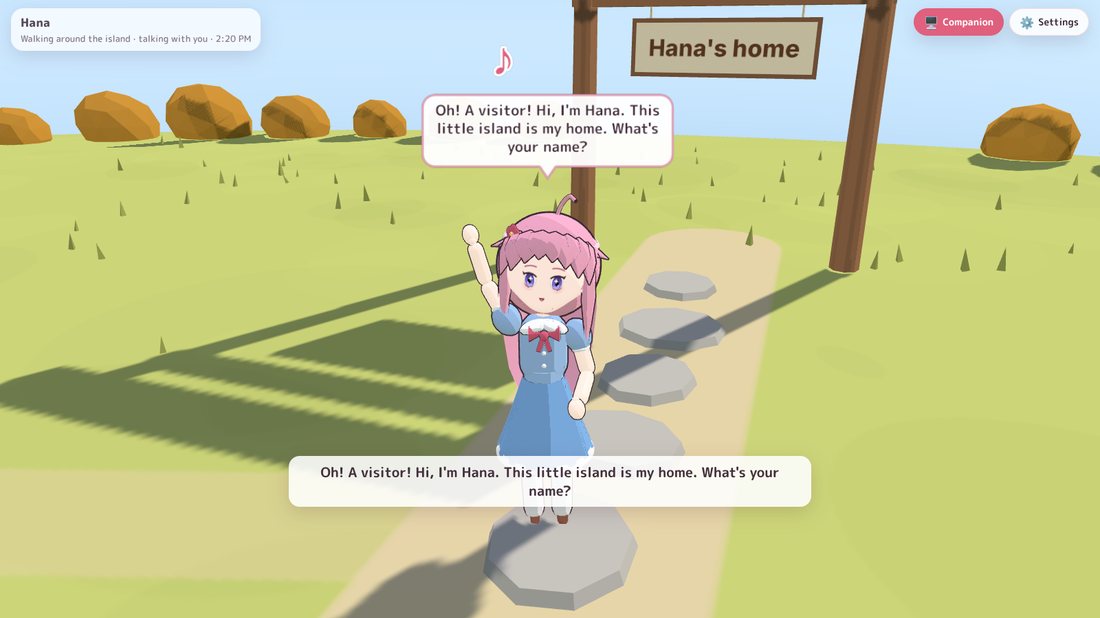
To put her home fullscreen on another monitor: ⚙️ Settings → Desktop → Second monitor → 🖥️ Fullscreen on … (pick the screen). Back to a window undoes it.
While you work (Settings → Desktop):
- Small talk: off, rarely (about every 30 minutes) or sometimes (about every 12 minutes). Uses her built-in lines, no AI needed.
- Break reminders: every 30, 45, 60 or 90 minutes, or off.
- Notice when I come back: when you've been away from your PC for a while, she says okaeri ("welcome back").
Want her right next to your apps instead? Put her on your desktop.