
Dark mode
On your phone
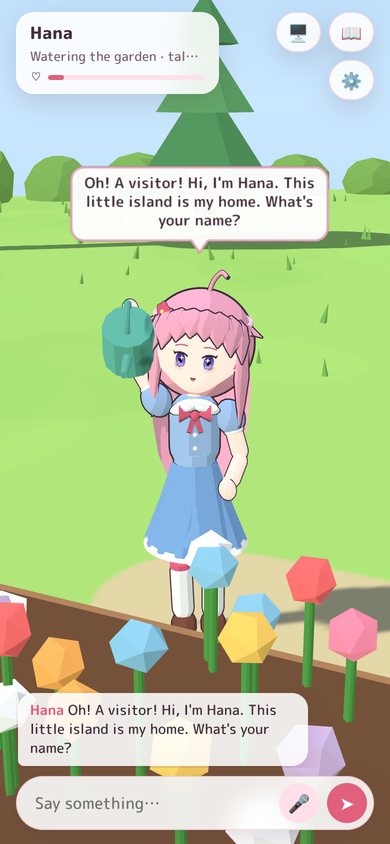
Have Hana with you on the sofa or in bed. Your PC keeps her running and sends her picture and sound to your phone; your phone sends back what you type and touch. No app to install, and nothing goes through the internet.
Connect your phone
- Make sure your phone and PC use the same router. Your PC can be on a cable; your phone just needs to be on that router's Wi-Fi.
- In Okaeri, open ☰ More → 📱 On my phone (or ⚙️ Settings → Desktop → Your phone → 📱 Show a QR code).
- Point your phone's camera at the QR code and open the link.
- Tap the screen once (phones only play sound after a tap). She's there.
When your phone has reached your PC, the window says Your phone reached this PC. Starting the picture…, then Hana is on your phone. You can close the window on your PC; she stays on your phone.
What you can do on the phone
- Watch and listen: her voice, her piano and other instruments, and your background music all play on the phone.
- Type to chat with her.
- Touch: tap her for a reaction (a head pat on her head), drag her hand to lead her, drag to turn the view, pinch to zoom.
- Talk with your voice: this still uses your PC's microphone, so it works when you're near the PC.
Sound on the PC too? Tick Also play her voice and instruments on this PC in the phone window. Untick it to hear her only on the phone.
New code makes a new link (the old one stops working). Stop sharing disconnects the phone.
If your phone can't reach her
If your phone shows a white page, keeps loading, or says "This site can't be reached", open the tips under the QR code (they open by themselves after 25 seconds without a phone). The usual causes, in order:
- The Windows firewall blocks your phone. Press 🛡️ Let my phone through the firewall and choose Yes when Windows asks. Then scan the code again. What exactly does this button do?
- Windows treats your network as Public. The tips tell you when that's the case. Press Open network settings and set Network profile type to Private. (The firewall button also works on Public networks.)
- Not the same network. Guest Wi-Fi keeps devices apart: use your main Wi-Fi on the phone, and turn mobile data off.
- The PC has more than one address (for example Wi-Fi and a cable, or a VPN). Tap Phone can't open it? Try this PC's other address above the tips, and scan again.
- Chrome on Android asks whether it may find devices on your local network. Allow it.
The firewall button, exactly
Your phone loads her page straight from your PC over your home network. For Windows, that's an incoming connection, and Windows blocks incoming connections for new apps, especially on networks set to Public. When you first ran Okaeri, Windows may also have quietly saved a rule that blocks it on Public networks, and a block rule always beats an allow rule.
🛡️ Let my phone through the firewall fixes both. It asks Windows for permission once (the "Do you want to allow this app to make changes to your device?" prompt, because firewall rules need it) and then makes two changes to the Windows Defender Firewall:
- It removes Okaeri's old incoming rules, including that block rule. This only touches rules for Okaeri's own program file, nothing else.
- It adds one rule called "Okaeri (phone on this network)" that lets in connections to Okaeri only, and only from addresses that exist on home and office networks:
10.x.x.x,172.16.x.x – 172.31.x.x,192.168.x.xand169.254.x.x(the address ranges routers hand out inside your home). It applies on any network type, so a network marked Public doesn't block your phone.
What it doesn't do:
- It doesn't turn off your firewall or open anything for other apps.
- It doesn't let in connections from the internet: those come from other addresses, and your router blocks them anyway.
- It doesn't keep a door open in Okaeri: Okaeri only accepts phones while sharing is on (after you press 📱, until you press Stop sharing or close the app), and only with the one-time code in the link.
Undo it
- Open Windows Security → Firewall & network protection → Advanced settings.
- Click Inbound Rules on the left.
- Find Okaeri (phone on this network), right-click it → Delete.
Or, in a Command Prompt opened with Run as administrator:
bat
netsh advfirewall firewall delete rule name="Okaeri (phone on this network)"The next time Okaeri accepts a phone, Windows asks again whether to allow it, like the first time.
Testers running Okaeri from source code
The rule is tied to the program that runs Okaeri. In a source checkout (npm run desktop), that's electron.exe in the project's node_modules\electron\dist folder, so the rule lists that file instead of Okaeri.exe.
Privacy
Her picture and voice go straight from your PC to your phone over your home network, never through the internet or any server. Only a device with the current link (it contains a one-time code) on your local network can watch, and Stop sharing ends it. See Privacy and safety.